ScanClean
Media Cleaner
Sweeps your photo library for near-identical bursts, repeated saves and screenshot pile-ups, then groups them so a whole cluster can be judged in one look.
iPhone photo cleanup & privacy
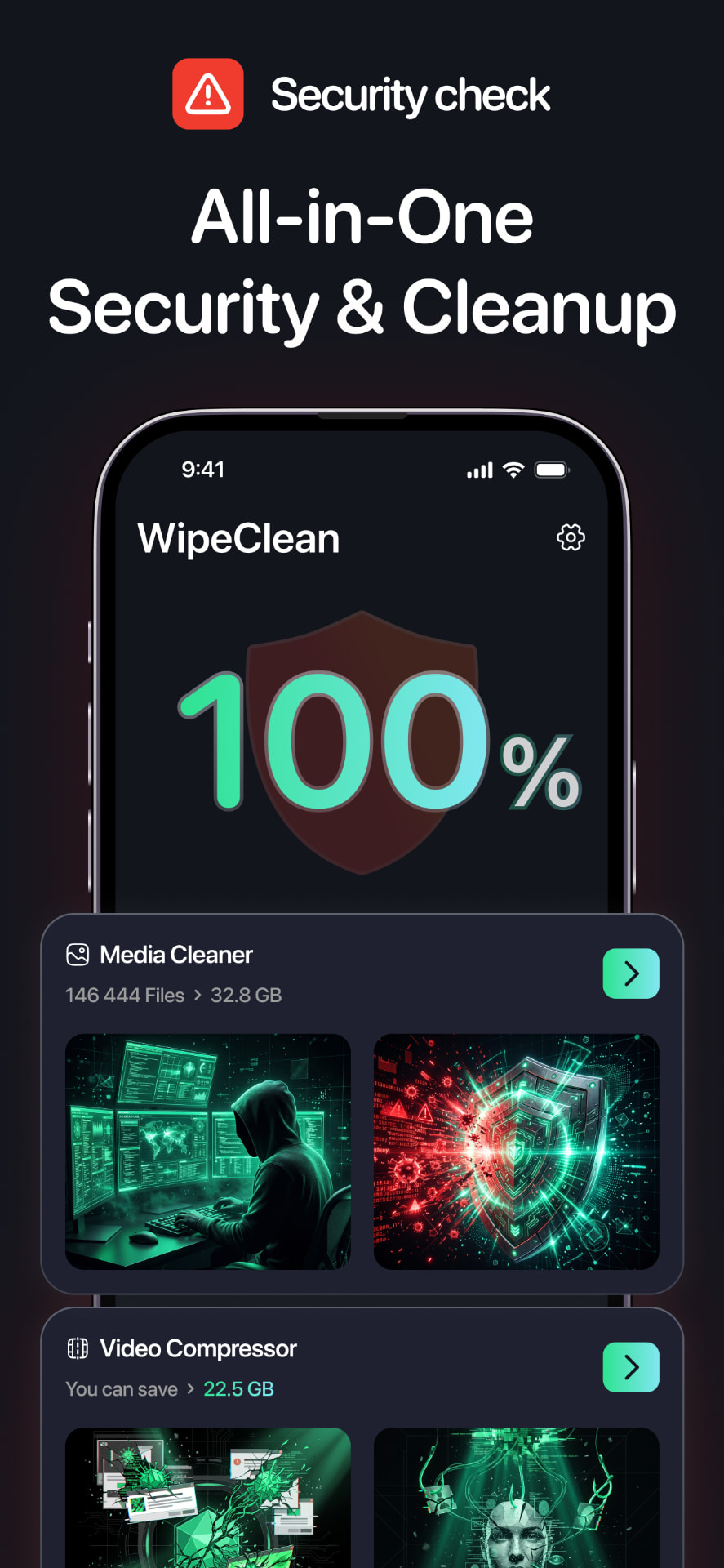
WipeClean groups duplicates and screenshots so you can clear them in a few taps, locks the photos you would rather nobody scrolled past, and shrinks the videos eating your storage.
ScanClean
Sweeps your photo library for near-identical bursts, repeated saves and screenshot pile-ups, then groups them so a whole cluster can be judged in one look.
Vault
Move chosen photos into a passcode-locked space. They leave the ordinary grid and sit behind a lock state you control.
Compress
Re-encode long clips at Optimal, Midi or Maxi presets. Results aim for minimal visible quality loss, and you see the estimate before committing.
Review
Every group arrives pre-grouped, never pre-deleted. Deselect anything, keep the best shot, and the rest only goes when you confirm.
Privacy-first
Duplicate detection, vaulting and compression are designed to run on your iPhone. Permissions are requested only for what a feature needs, every destructive action waits for your confirmation, and you can withdraw Photos access at any time in iOS Settings.

Grant Photos access and let WipeClean read the library index to build duplicate and screenshot groups.
Walk through the groups. A suggested keeper is marked; you decide what stays.
Confirm removal. Deletions follow the iOS flow, so items land in Recently Deleted first.
Send sensitive photos to the vault and compress the heavy videos you want to keep.
It compares photos by visual similarity and capture metadata, then clusters near-identical frames such as burst sequences or repeated saves. Grouping is a suggestion, not a verdict — you confirm every cluster.
Vault items are held behind a passcode you set inside the app. Choose a code you can remember: if it is lost, the app has no way to recover vault access for you.
Only the items you leave selected when you confirm. Removals go through the standard iOS deletion flow, so photos appear in Recently Deleted for the system retention window before they are gone.
It depends on the source clip, its length and how it was recorded. The app shows an estimate for the chosen preset before you compress, and results vary from file to file.
Scanning, vaulting and compression all operate on your photo library, so the permission is required for those features. Access can be changed at any time in iOS Settings.
Large libraries take time on the first pass, especially while iCloud items are still downloading. Keep the app in the foreground, stay on power and Wi-Fi, then relaunch and rerun the scan if it stops progressing.
Recently deleted photos can be restored from the Photos app until iOS purges them. Compression writes a new file, and vault items can be moved back out from inside the vault.
Scan, review, clean and protect — all from one app on your iPhone.